glimpses documentation
Practical help for people who want to keep a private journal. Start here if you need to install the app, connect Dropbox, write entries, add photos, find old days, or understand the beta trial and refunds.
Quick start
Write your first entry
glimpses is currently in beta. You only need a Dropbox account, and you do not need a card to start the free trial.
- Open glimpses Go to app.getglimpses.com.
- Log in with Dropbox Use the Dropbox account where you want your journal to live.
- Press the plus button A new entry opens with today’s date.
- Write naturally The first line can be a title. Everything after it becomes the body of the entry.
- Tap Done glimpses saves the entry on this device and syncs it to Dropbox.
Install
Install glimpses on your devices
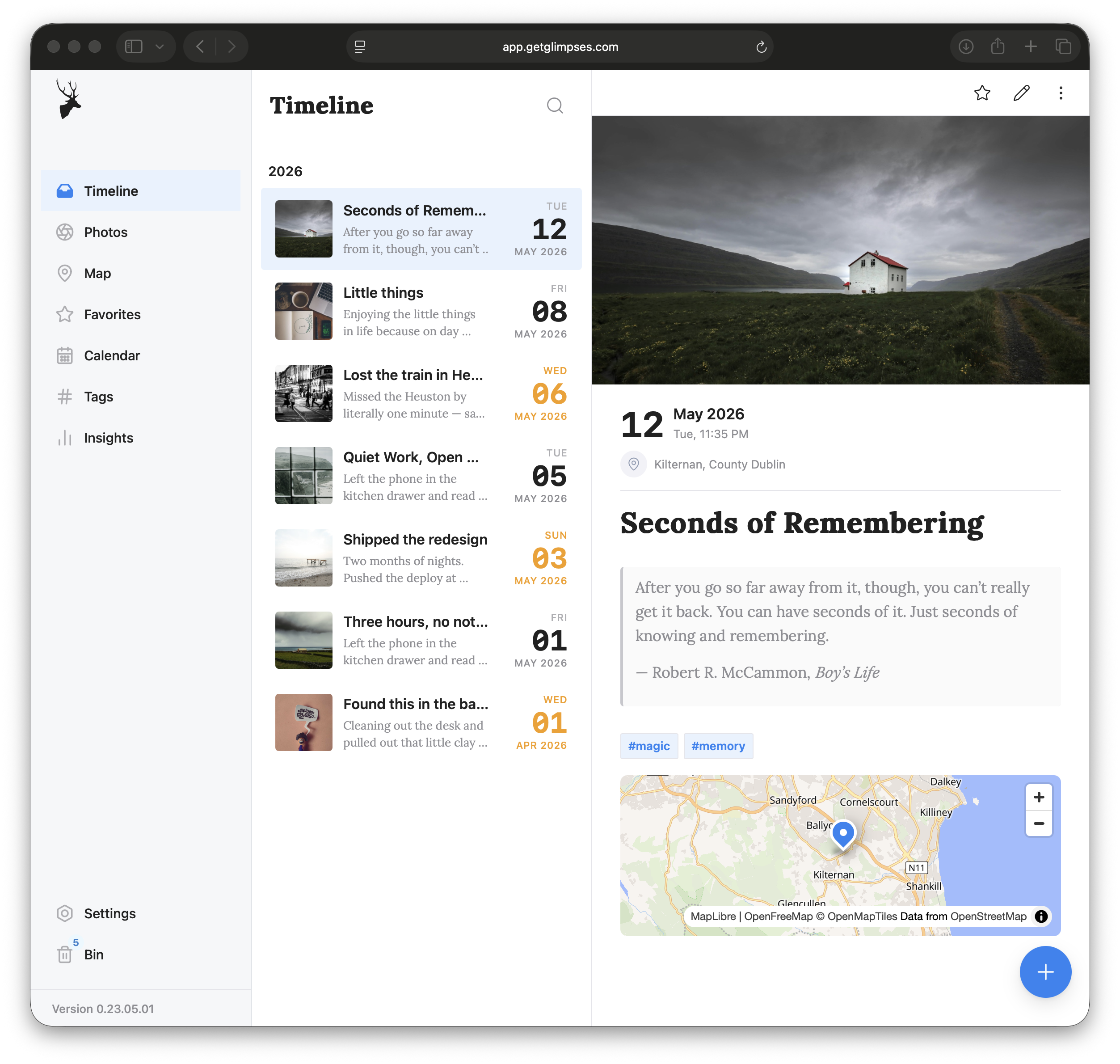
glimpses is a web app. You can use it in the browser, or install it so it opens from your home screen or desktop like an app.
iPhone or iPad
- Open Safari.
- Go to app.getglimpses.com.
- Tap the Share button.
- Choose Add to Home Screen.
Android
- Open Chrome.
- Go to app.getglimpses.com.
- Open the browser menu.
- Choose Install app or Add to Home screen.
Computer
- Open the web app in your browser.
- If your browser shows an install button, use it.
- If not, bookmark the app and keep writing in the browser.
Dropbox sync
Your journal lives in Dropbox
glimpses does not keep a copy of your journal with us. Your entries sync through Dropbox. There is no iCloud sync in the app today.
- Sign in with Dropbox on every device you want to use.
- Leave the app open for a little while during the first sync.
- Write offline when you need to. Changes sync when you are online again.
- If two devices change the same entry, glimpses asks which copy to keep.
Writing
Add photos, dates, places, and tags
An entry can be a single sentence, a long page, or a photo with a few words. Use only what helps you remember the day.
Photos
In an entry, open the menu and choose Add photo. If a photo is already attached, choose Manage photo to replace or remove it.
Date
New entries use today’s date. To write about another day, open the entry menu while editing and choose Pick date.
Place
If you allow location access, new entries can remember where they were written. Entries with places appear on the Map.
Tags
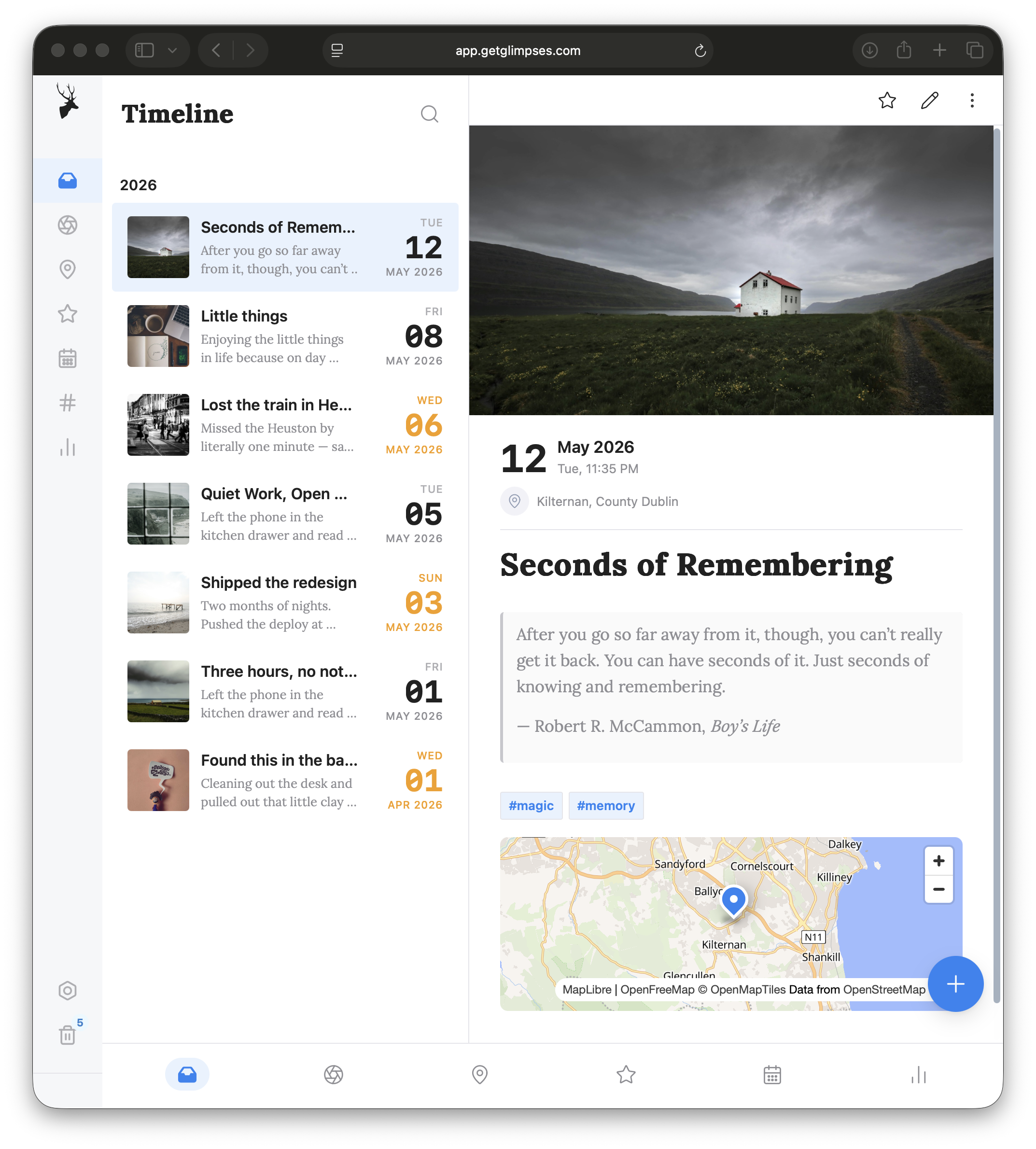
Use the tag line at the bottom of the editor. Tags like
#family, #travel, or #ideas
help you collect related entries later.
Favorites
Open an entry and tap the star when you want to keep it close. Favorites are collected in their own view.
PDF export
Open an entry, open the menu, and choose Export to PDF when you need a clean copy outside the app.
Find entries
Come back by time, photo, place, or tag
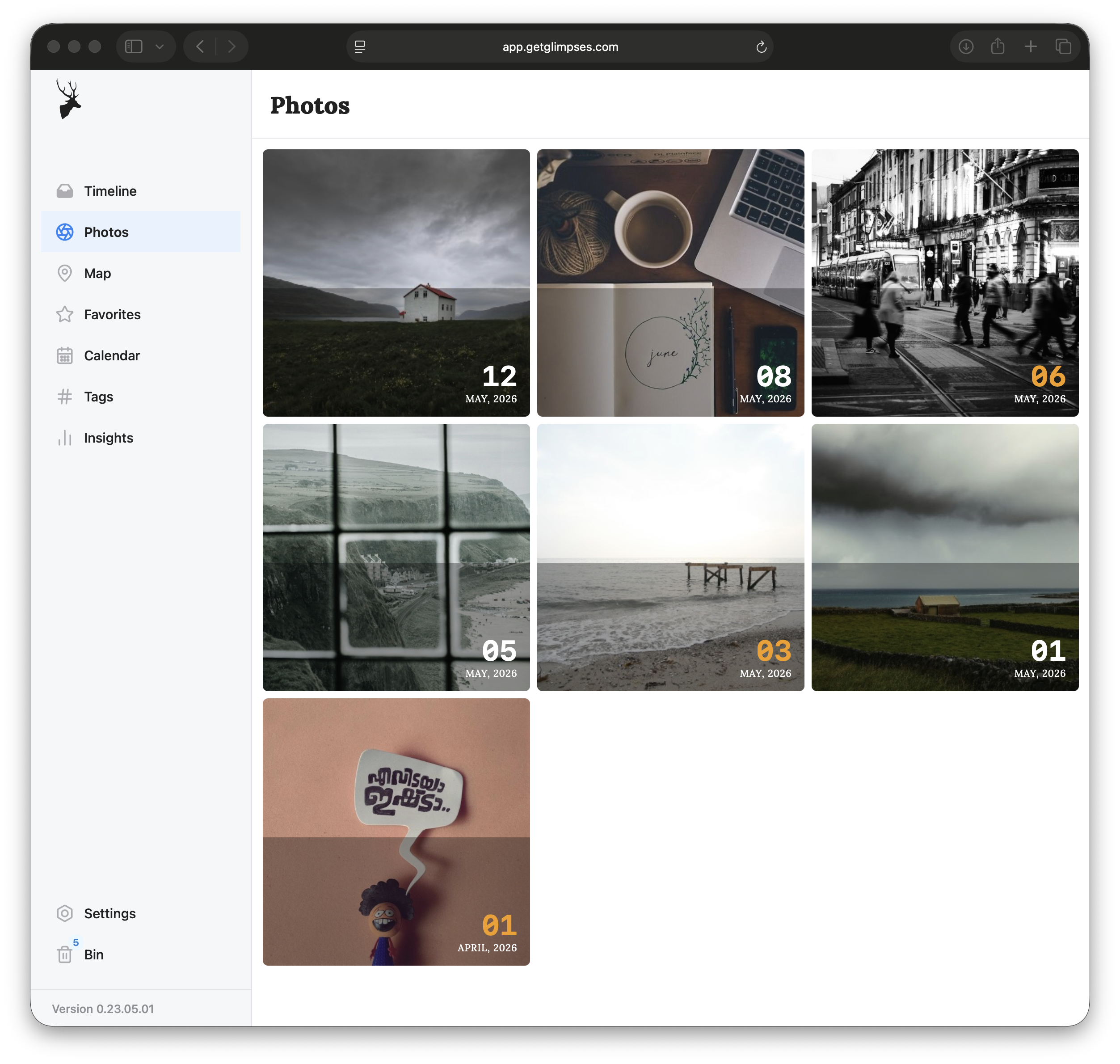
You do not need to remember exact titles. glimpses gives you several quiet ways back into your old days.
Search
Use search in the Timeline when you remember a word or phrase.
Calendar
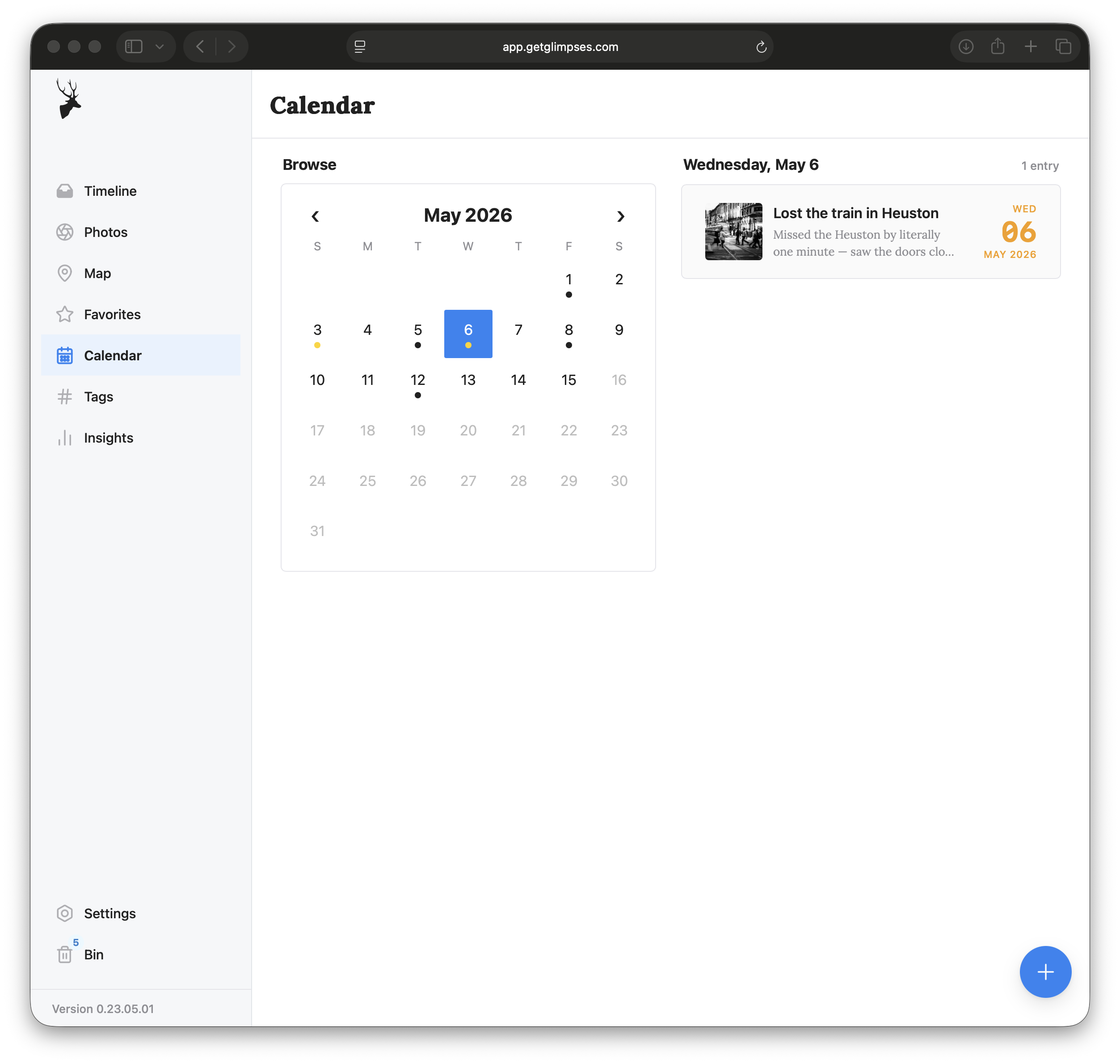
Pick a day to see the entries written on that date.
Map
Open Map to browse entries that have a saved place.
Tags
Open Tags to see every entry connected to a topic.
Old Windows app
Bring your old entries into the new app
If you used the older Windows version of glimpses, sign in with the Dropbox account that holds those journal files. The new app reads the same Dropbox journal, so there is no separate import step.
Privacy
What glimpses keeps, and what it does not
Your entries
Your journal entries sync through your Dropbox account. glimpses does not store your journal with us.
This device
glimpses keeps a local copy so the app opens quickly and can work when the connection is rough.
App lock
In Settings, use Secure to add a PIN on this device. App lock is set per device, so repeat it on each device you share.
Logging out
Logging out clears local journal data from that device. Your Dropbox journal is not deleted.
Trial and refunds
Try it first, then buy once
glimpses starts with a 7-day free trial. You do not need a card to start. After the trial, continue with a one-time lifetime purchase.
Start trial
Log in with Dropbox. The app starts your trial automatically.
Buy lifetime access
When the trial ends, choose Get lifetime access and pay through Stripe.
Refund purchase
Within 30 days, open Settings and choose Refund purchase. You can do this in the app without emailing support.
Troubleshooting
Fix common issues
My entries are missing on a new device
Make sure you used the same Dropbox account. Keep the app open for a little while so the first sync can finish. If nothing appears, reload the app and try again.
I wrote offline. Will it be saved?
Yes. glimpses saves the change on this device first. Keep the app open when you are back online so it can sync to Dropbox.
I changed the same entry on two devices
glimpses may show a sync choice on that entry. Read both options carefully. Choose Keep local if the version on this device is the one you want.
I forgot my PIN
Use Forgot PIN on the lock screen. This clears the local copy on that device. Your Dropbox journal is not deleted, and you can sign in again.
I deleted an entry by mistake
Open Bin, open the deleted entry, then choose Restore. Use Empty Bin or Purge only when you really want to remove deleted entries.
I need help from a person
Email support@getglimpses.com. Include the device and browser you are using, plus what you were trying to do.
Still stuck?
Send us what you were trying to do, the device you are using, and what you expected to happen.
Email support